Retro Favicon

Let’s talk about something absolutely frivolous today. The tiny icon displayed in your broswer for sites, which is called a “favicon.” This is the original favicon I made in 2014 when I first set up a website. I believe I just popped open GIMP, threw in a serif typeface and spelled out my initials.

all caps E M R

This is fine, though bland. It served me well until I busted it on my webserver setup and started serving the whole site on favicon.ico (oops!) Fixing it has given me an opportunity to make something new. Still black text on a white field (until such a time as I find a new color scheme) and still my initials. But I wanted to pick a more unique typeface. Something that really spoke to me.

When I was first exposed to computer typography it seemed like a good idea to use zany fonts in the school papers I submitted. One I probably used the most was called Techno by David Berlow. I certainly remember the feel of a full paper written in Techno–not particularly legible (especially with my atrocious grade-school spelling) but extremely slick and modern looking. It loudly proclaimed itself as something you typed into one of these amazing ‘computer’ machines (or perhaps into the microscopic screen of an alphasmart.) All that optimism and retro cred was perfect. Techno was the font for me. So I went to see if anyone had uploaded it…

Nope! It still seemed to only exist as something you could use on Classic Mac OS, the long-gone operating system last seen on the iconic G3 iMac. I saw some fonts that appeared close (ie here) but the kerning was wrong and the name is unfortunately used to refer to a type of futuristic font instead of the specific one I was looking for so googling was getting me nowhere. And I’m not the only one who was looking for it either! Luckily, we can emulate an iMac and run OS9 to create an image.
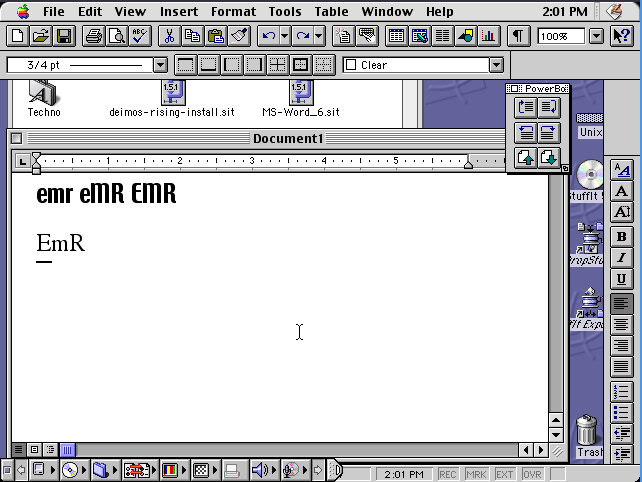
Screenshot of Microsoft Word with 'e m r' written out in the font discussed. It's running in an emulated MacOS 9 environment so everything looks charmingly retro.

With a little bit of cropping and tweaking on the capital E, we have a new favicon:
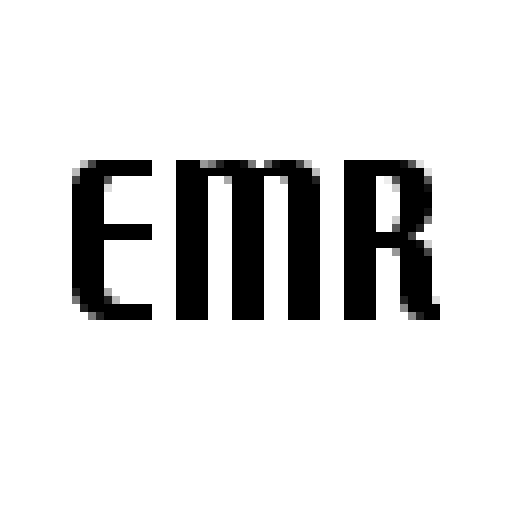
all caps E M R but in a new font

I could stop there, but needing to emulate a twenty seven year old operating system just to get a font isn’t an adventure for everyone, so why not bring these fonts into the present? Simply copying the font files out will result in resource fork problems but luckily there was a period correct app called Font Clerk which could convert them into regular true type fonts. Here are the fonts on internet archive for your enjoyment. There may be a couple of extras in there because I installed Microsoft Word to get the above screenshot.
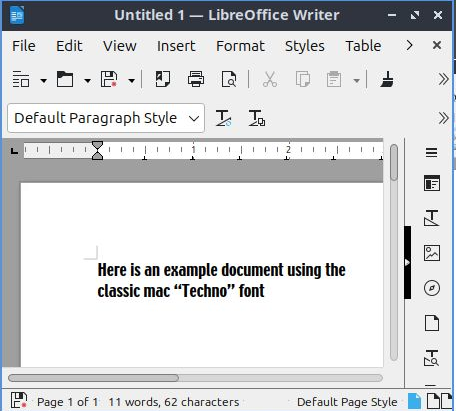
Screenshot of a modern system showing the retro font available for use

OS9 on Ubuntu

The first thing to know about emulating macs from The Before Time is that if you where using Classic Mac OS at the turn of the millennium, you probably used an iMac G3. This machine was ubiquitous-at least at schools in my area. This machine used a PowerPC chip rather than a 68k, so the emulator you want to use is SheepShaver. If you want to use a 68k there’s Basilisk II, which has a very similar setup, and just needs to be installed via apt.

In order to run SheepShaver you’ll need to download some additional stuff, so you might as well do it up front. Redundant Robot has become the de-facto distributor of these files (email me if this ever goes down, I’ll host’em.) Specifically you’ll want the New World ROM and A pre-made bootable OS9 install.

Next you’ll want to compile a copy of SheepShaver. This is thankfully very easy thanks to StackOverflow:

Install dependencies:

sudo apt install build-essential libgtk2.0-dev x11proto-xf86dga-dev libesd0-dev libxxf86dga-dev libxxf86dga1 libsdl1.2-dev osspd git

clone the macemu repo from github:
git clone https://github.com/cebix/macemu.git

Build SheepShaver:

cd macemu/SheepShaver
make links
cd src/Unix/
./autogen.sh
make -j3

Install the binary into your path

sudo cp SheepShaver /usr/bin

Run Sheepshaver with

sudo padsp SheepShaver

This will get you to the setup menu. In the Memory/Misc tab, add the new world ROM file. Then, back in the Volumes tab, add the .img file you downloaded, and create a new (big) empty volume to store your apps. Next add a valid directory that you do not care about because it will be consumed by sudo-enabled fire as “unix root.” Now you should be able to boot into the machine by hitting “start.”

In order to get apps working, you’ll generally want to first get them out of your unix folder and only then unpack them (most vintage mac files are in Stuffit format, so you’ll want a copy of Stuffit Expander to be your first install.)

Unfortunately, the Redundant Robot image is too small to fit many apps. What you’ll want to do is make your own image. Make a blank disc with SheepShaver’s interface download  this disc (you’ll need an account.) In order to boot from a file, it needs to be read-only (in fact it will render any writable file that it tries to boot from unbootable.) But you need to run SheepShaver as root. So to render the file unwritable to root, you need to make it immutable with

chattr +i ~/Downloads/Mac_OS_9.0.4.toast

Then add it to the boot list and it’ll boot to the installer.